
The client
The client is the page the gateway serves, compiled into the gateway binary. It needs:
A secure context. The gateway speaks plain HTTP and has no TLS listener, so reach it on loopback (localhost, 127.0.0.1, [::1], any .localhost name) or through a TLS-terminating reverse proxy. A LAN address over plain http:// is refused, by name.
- Loopback
localhost,127.0.0.1,[::1]or any.localhostname, on the gateway's machine or through an SSH tunnel to its port - A TLS-terminating reverse proxyHTTPS of your own in front of the gateway
- A LAN address over plain
http://Refused, by name
WebCodecs for the pictures a remote sends as video: VideoDecoder for wlshare's H.264, a High Performance Mac's HEVC or H.264 and an RDP host's H.264. The client still starts without it, and the gateway's tiles, a Standard Mac's Adaptive picture, wlshare's progressive tiles and an RDP pipeline without H.264 work anywhere.
Need VideoDecoder
- wlshare's H.264
- A High Performance Mac's HEVC or H.264
- An RDP host's H.264
Work in any browser
- The gateway's tiles
- A Standard Mac's Adaptive picture
- wlshare's progressive tiles
- An RDP pipeline without H.264
Need AudioDecoder
- Opus
- A Mac's AAC-ELD
- FLAC, which Safari's decoder fails
The page asks the browser's decoder beforehand about the Mac's HEVC and the RDP host's H.264: the picker greys them, with the reason, where the decoder refuses them. It asks about wlshare's H.264 too, in both profiles wlshare codes: where the decoder refuses either, a wlshare target's Adaptive video and its tiles with motion are greyed, leaving its progressive tiles, which the page decodes itself. The Mac's H.264 is not asked about: it is offered to every browser with VideoDecoder and greyed without one, and a decoder that refuses it says so in the session, by its error. AudioDecoder plays Opus, a Mac's AAC-ELD and FLAC; a browser without it (Safari 16.4 to 18) plays no sound, and a later Safari, whose AudioDecoder fails FLAC, plays Opus and the Mac's sound.
On a desktop, a phone or a tablet
For desktop use, install the page as an app in Chrome or Edge. An app window hands the page the key chords a normal tab keeps for itself (⌘W, ⌘T, ⌘N and the like). In a tab, Menu → Immersive full screen does the same and adds the keys no window is otherwise given, such as the Super key and Alt+Tab.
The desktop is shown at 100%, never scaled to fit: a larger desktop scrolls, and in a session started with resize the window drives the remote's size instead. A phone or tablet fits to width and pinch-zooms, with fingers as a trackpad and a soft keyboard.
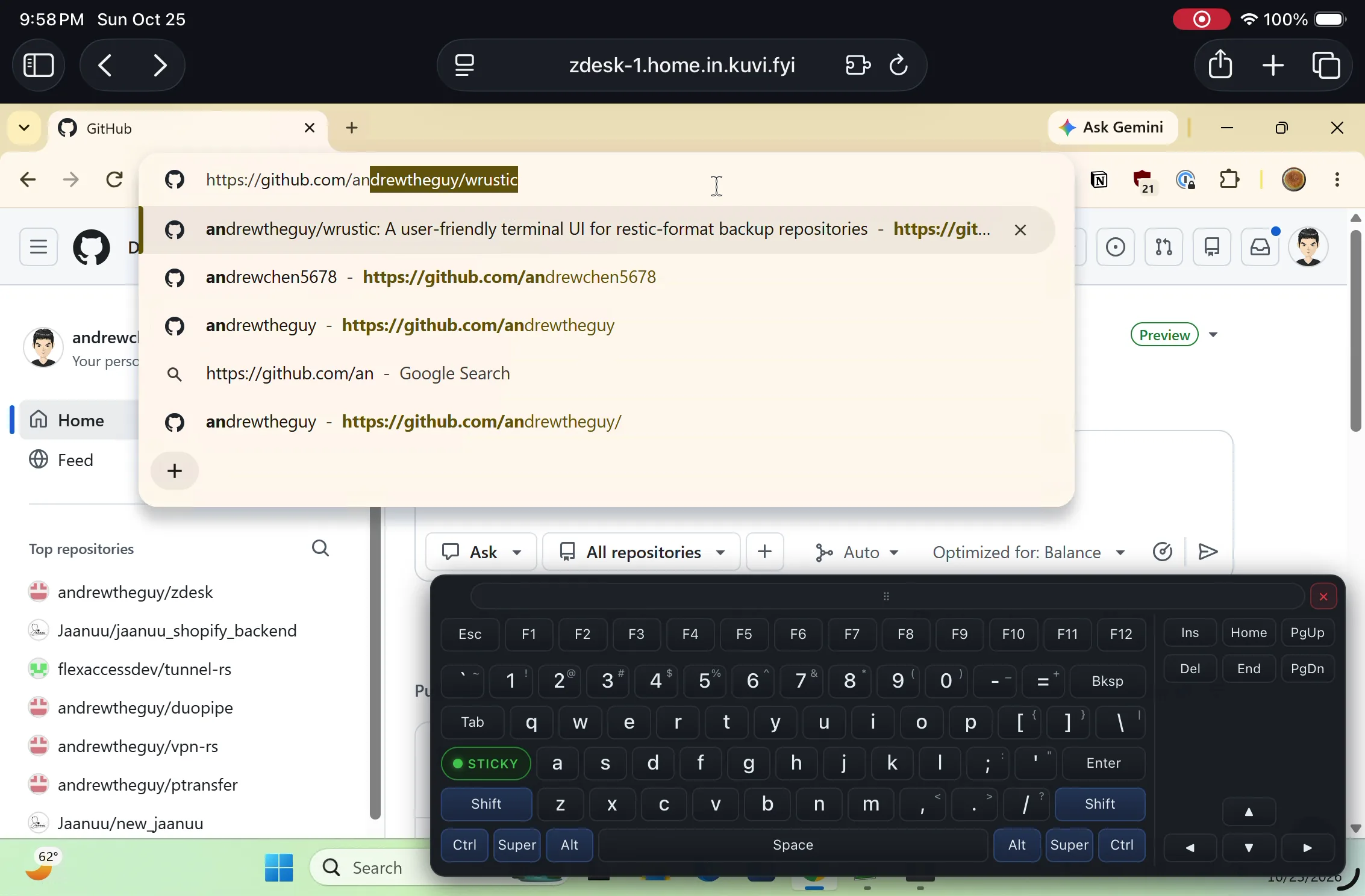
An installed app has Window → Size to width×height, which resizes the local window to the remote desktop's size through window.resizeTo(). It resizes the local window and never scales or resizes the remote desktop. It works in installed Chrome and Edge app windows and is best-effort in other browsers; ordinary tabs cannot resize their window, and mobile browsers ignore the request.
On macOS the window's rounded corners are masked over the page, so a window sized to the desktop loses the framebuffer's corner pixels. The radius is a system-wide setting; one point is square enough to see every pixel:
defaults write -g NSConvolutionOverride1 -float 1Quit and reopen the browser app to pick it up. defaults delete -g NSConvolutionOverride1 restores Apple's radius: 26 points on macOS 26, 10 before it.
Starting a session
After login the page shows the target picker. Picking a target opens it, its options show under it, and Start connects with them. They are chosen per session, held for its life, and remembered by the browser per target; none is a config key.
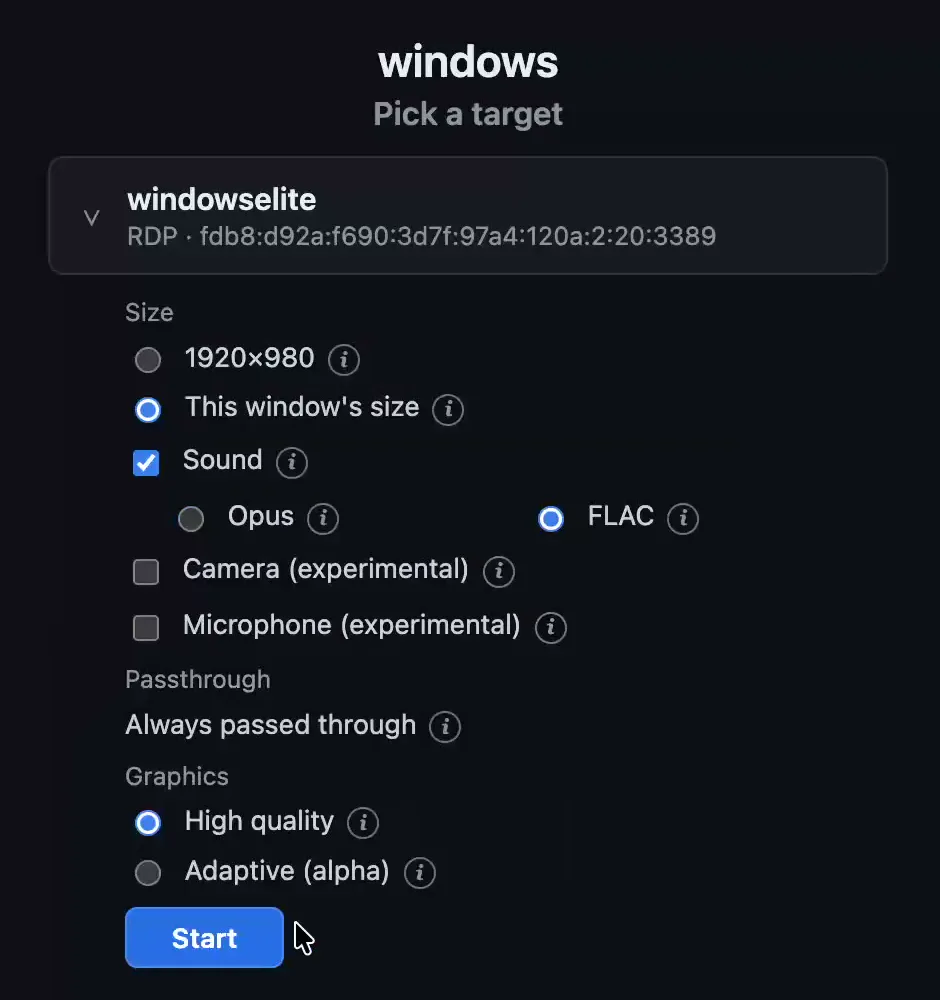
rdp target: the size following the window, sound as FLAC, and the pipeline always passed through and drawn High quality.| Target | Window drives the size | Sound | Passthrough | Graphics |
|---|---|---|---|---|
rdp | yes | off, Opus or FLAC | the graphics pipeline, always passed | high quality or adaptive H.264 |
rdp with egfx = false | no | off, Opus or FLAC | ||
vnc | no | none | ||
vnc, wlshare | yes | off, Opus or FLAC | its H.264 video, its progressive tiles (alpha), or its tiles with motion, always passed | |
vnc, ard | no | none | the Mac's Adaptive picture, passed (beta), or none: the gateway's tiles of the Mac's Full quality | |
vnc, ard with virtual_display | yes | none | as ard | |
vnc, ard-high-performance | yes | always carried | the Mac's HEVC, or its H.264 (beta), always passed |
Size
A desktop either keeps one size, the target's size = "1920x1080" or 1440×900 where it sets none, or follows the window: the remote is asked to render at the window's size and the browser's density, rather than being scaled on the client. A kept size follows the browser's density too. A phone is offered the kept sizes only. A plain vnc target and ard on the Mac's physical displays are shown at the remote's own size and take no size.
Sound
Opus, or FLAC, which is lossless. A session started without sound asks the remote for none, so the host keeps playing where it did. In the session, Mute and Unmute change only whether this browser listens. A phone, a tablet and Safari start muted. A browser without AudioDecoder greys Sound, and Safari, whose AudioDecoder fails FLAC, greys FLAC, so ticking Sound there takes Opus. On a High Performance Mac the menu's Audio button reads Audio not supported in such a browser, and AAC-ELD not supported in one that cannot decode the Mac's AAC-ELD.
Passthrough
Sends the remote's own stream to the browser as it came instead of tiles coded by the gateway. A High Performance Mac's picture is always passed, and which stream is the choice: its HEVC, greyed where the browser cannot take it, or its H.264 (beta), which is offered to every browser with a VideoDecoder and needs no HEVC decoder in the page. On an rdp target with the pipeline on it is no choice: the picker says it is always passed, with no box to tick, and a browser that cannot compose the pipeline cannot start the target. A passed RDP pipeline follows the browser's link: the Windows host draws fewer frames for a browser that falls behind, and under Adaptive coarser ones too. A Mac's passed stream does not: the Mac sends at its own rate, little on a still screen and much with motion.
On an ard target the Picture group is Apple's Adaptive (beta), passed through, the default, or Gateway adaptive, settles to lossless.
Apple's Adaptive beta
The default. The Mac's own 8×8 tiles, which this page decodes.
- Each change
- A coarse pass, then its refinement
- On a slower link
- The same precision, fewer updates, refined once the screen is still
- Lossless
- never
- Browser comes back
- Started over, not resumed
Gateway adaptive
The Mac's lossless Full quality, which the gateway inflates and sends as its tiles.
- Each change
- JPEG while a region changes, lossless once it has settled
- On a slower link
- Fitted to the link
- Lossless
- once settled
- Browser comes back
- Resumed
Apple's Adaptive is greyed under Combined Display (below), which is the gateway's tiles too.
On a wlshare target every picture is wlshare's own and passed through, which the labels leave unsaid: the Picture group is Adaptive video, the default, wlshare's H.264 of the whole desktop, Progressive tiles (alpha), its tiles fitted to the link as a Windows host draws without H.264, or Tiles with motion (LAN), wlshare's own tiles, for a LAN: see wlshare.
Displays
On an ard target sharing the Mac's physical screens: One at a time (beta), the default, starts on the main screen and offers the others in the display menu, in the picture chosen above; Combined (alpha) shows every screen at once, as Apple's viewer's Combined Display, and offers no single screen. Combined Display asks the Mac for its Full quality, which the gateway decodes, composes and sends as its tiles, following the browser's link as any picture coded here does. On a 1x browser a 2x screen is scaled down to 1x by the gateway, so it costs the link a quarter of its own pixels; a 2x browser is sent the Mac's own pixels and draws a 1x screen up itself. Screen Sharing Standard's alone. See A passed stream and the browser's link.
Graphics
How an RDP host draws its pipeline. Adaptive is greyed in a browser whose VideoDecoder cannot decode the host's H.264. See A lossless picture for having the host draw losslessly.
High quality
The default. The pipeline's codecs without H.264, for a LAN.
- On a slow link
- Fewer frames, none of them coarser
Adaptive alpha
H.264 the host fits to the browser's link.
- On a slow link
- Coarser on a slow link, finer on a fast one
- H.264 full screen
- The default: the whole desktop in H.264
- H.264 region
- Only what moves like video, the rest as High quality draws it: text stays sharp, but it adapts less
Camera and Microphone experimental
On an rdp or wlshare target, ticks that offer the remote this browser's camera and microphone for the whole session, each opening only while an application on the remote uses it. See Camera and microphone.
One session per gateway
One gateway holds one session. A reload or a dropped connection normally resumes it; an RDP session with the graphics pipeline on or a Standard Mac's Adaptive session instead reconnects the engine, because the browser's compositor or decoder state is gone. A different browser that finds the owner attached is asked whether to take over; one arriving during the owner's reattach grace may claim the slot directly. Either starts at the picker with its own choices. The remote keeps its own desktop, so starting the target again returns to the same windows.
Target passwords
A target never writes its password. It names it, and the config keeps it encrypted in [passwords] under that name:
The target names it
password_ref = "workstation"in its[[targets]]- by name
The config keeps it encrypted
workstation = "$ZD;1;AES-256-GCM;…"under[passwords]- AES-256-GCM, with the config's own salt
Under your master password
Checked by
[master], and read from a file or, underzdesk tui, the keychain
[[targets]]
name = "workstation"
protocol = "rdp"
host = "192.0.2.10"
username = "Administrator"
password_ref = "workstation"
The two tables are printed for you to paste, never typed:
zdesk password master create -c zdesk.toml   # once: writes the master password file, prints [master]
zdesk password master show -c zdesk.toml     # each further config: prints [master] under it
zdesk password encrypt -c zdesk.toml         # prints one value for [passwords]
[master]
salt = "…"
check = "…"
[passwords]
workstation = "$ZD;1;AES-256-GCM;…"password encrypt asks for the password twice, or reads one line from a pipe, and encrypts it under the [master] already in the config, which it only reads. The name is yours to give when pasting, and it is what password_ref says. vnc_password_ref names a VNC server's own password the same way. Nothing secret is in either output, so it can go wherever the config is assembled: an editor, a Helm values file, a templated ConfigMap. A local instance's config is the TUI's to write: its p asks for the name and the password and writes both tables itself.
A value may also be left empty, workstation = "", as a placeholder for a password not set yet: the target answers with the empty password until the real value is pasted over it, and a config whose names are all placeholders needs no [master] or master password.
The master password
Every other value is AES-256-GCM under a key derived from your master password and the config's own salt. A served gateway reads it from a file named by [server].master_password_file: a container secret, a systemd credential, or a file only the gateway's account can read. The file holds the master password alone; a trailing newline is ignored. password master create writes it, readable by its user alone, and refuses to replace one that exists unless given --force, after which every value encrypted under the old one stops opening; password master show prints a [master] block under the one already there. The TUI keeps its own in the keychain (the macOS Keychain, Windows Credential Manager, or a Linux desktop's Secret Service: GNOME Keyring, KWallet), read once when the TUI starts and generated then if there is none, so you never type it. Nothing but the TUI reads the keychain.
| Started as | Master password from |
|---|---|
zdesk serve | [server].master_password_file; refused without it when a target names an encrypted value, never asked |
zdesk tui | the keychain, read when the TUI starts; generated and kept there when it has none; refused when the keychain will not answer, never asked |
zdesk password | [server].master_password_file, else asked; password master create asks twice and writes that file |
A local instance has no [server] block, so its master password always comes from the keychain.
A wrong master password is reported as one at start-up. Changing the master password means setting each password again under a new [master].
Windows (rdp)
[[targets]]
name = "workstation"
protocol = "rdp"
host = "192.0.2.10"
username = "Administrator"
password_ref = "workstation"
The RDP client is the gateway's own, tested against Windows 10 and 11's Remote Desktop over NLA. It carries the desktop, pointer, keyboard, mouse, resize, the clipboard, sound, and the browser's camera and microphone. It does not carry touch. Windows Home cannot be reached: it does not host Remote Desktop.
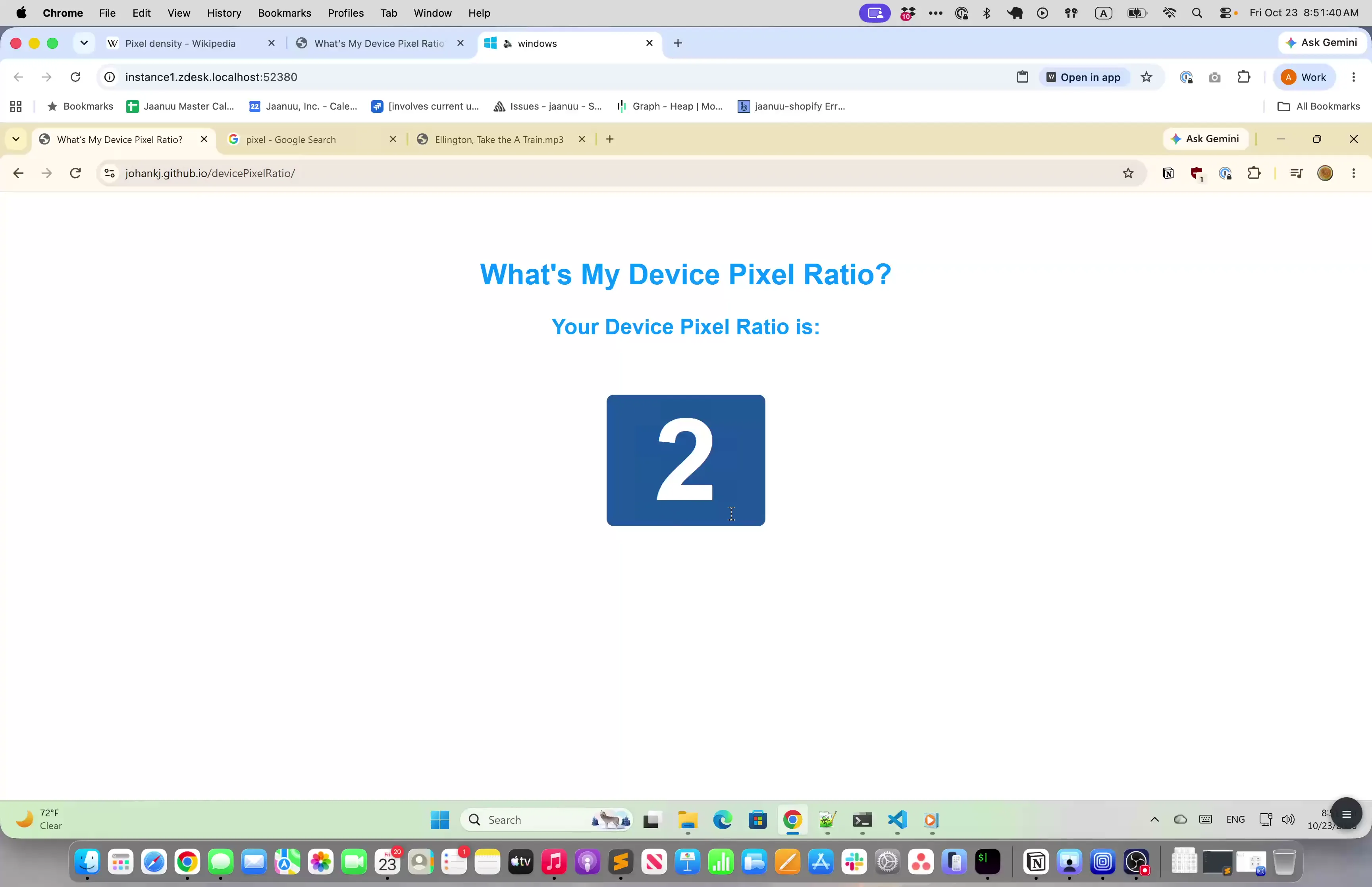
- The host draws through the graphics pipeline (MS-RDPEGFX), which every session passes to the browser to compose. That takes nearly all of the picture's work off the gateway. It needs WebGL 2 and a cross-origin isolated page, which a proxy that drops the gateway's two isolation headers undoes; a browser without them cannot start the target. How the host draws the pipeline, high quality or adaptive H.264 (alpha), is chosen at the picker.
egfx = falsemakes the host draw with bitmap updates instead, which the gateway sends as tiles: the target for a browser that cannot compose the pipeline. The desktop then keeps its size: without the pipeline Windows resizes by rebuilding the share, which this gateway does not take.
Two displays beta
virtual_displays = 2 asks the host for two displays, each the session's size. Where the second sits against the first is chosen under the target at the picker, Second display: right, left, top or bottom, to match where the client's own second display is.
/display/2 in a new tabThe session starts on All Displays, in the floating menu's Display picker, which keeps the first display here and links to the second, Open Display 2 ↗ under the menu's Display button: it opens at /display/2 in a new tab of the same browser, just that display, with its own pointer and keyboard, and clicked again it brings that tab to the front. The picker's Display 1 and Display 2 show one display alone on this page. A window dragged over the edge between the two tabs arrives on the other display, as the pointer does, however their windows are arranged. With each tab full screen on a display of its own the edges meet, so it arrives where it was dragged to; with anything between the two pictures it arrives short by that much.
While All Displays is chosen the Display picker and the menu's Info carry the same link. The page shows the display as it opens. On a session that follows the window, that tab's window sizes display 2. It needs the login of the browser holding the session and is shown in one tab at a time: a tab opening it while another shows it says it is in use and asks before it Takes it over, as a browser asks before taking a session, and the tab it was taken from says so and offers Take it back. That tab's menu Disconnects it, and choosing one display alone closes it. Opened while it is not shown, it says it is not available. With the pipeline on, the browser holding the session composes both displays once and shows one; the second display's tab is painted from that same picture, so nothing is decoded twice. Checked against one Windows 11 host, the passthrough over two displays by a headless browser's sockets only, not yet by eye.
The second display's tab has a menu of its own, behind a button showing the display's number, 2, where the session's page shows 1 instead of ☰. It holds what is that tab's alone, Immersive full screen, that display's size and density, and Disconnect; everything else stays in the menu on the session's page.
The second display's tab is for a client with two physical displays, one for each. A client with one leaves the tab unopened, and has the first display here as it would alone, or picks a display. The tab is not supported on a phone or tablet, though nothing there stops you opening it.
A lossless picture
By default a Windows host draws much of its desktop lossily, as RemoteFX Progressive and ClearCodec's NSCodec, which blur text and colours slightly. Its own policy decides that, and no setting in zDesk overrides it. To have it draw every pixel losslessly:
On the host, open the Local Group Policy Editor (
gpedit.msc) and go to Computer Configuration > Administrative Templates > Windows Components > Remote Desktop Services > Remote Desktop Session Host > Remote Session Environment. Enable Configure image quality for RemoteFX Adaptive Graphics and set it to Lossless. A Windows edition without the editor takes the same setting in the registry, from an elevated prompt:reg add "HKLM\SOFTWARE\Policies\Microsoft\Windows NT\Terminal Services" /v ImageQuality /t REG_DWORD /d 1 /fA domain's Group Policy, where one sets it, wins over either.
Run
gpupdate /force, then start a new session: one already running keeps the quality it started with.At the picker, keep Graphics on High quality. The host then draws only lossless codecs, planar and uncompressed rectangles, and passes them to the browser as they are.
In the session, open the menu's Info: the Host's picture row reads Lossless (Planar) or similar. Lossy (…) names what the host drew with instead, and means the policy has not reached the session.
Lossless is costly, because the host draws what moves losslessly too: the opening desktop alone is about 7.6 MB, and a video in a window about 19 MB a second, before the host's own compression, which reaches the browser with them and takes about a third off planar drawing and half off scrolling. That suits a LAN. Adaptive H.264 changes nothing on such a host: it draws no H.264 under Lossless. See Lossless, by the host's policy for what was measured.
Another RDP server, an older Windows or xrdp say, may happen to work but is not tested against. See The RDP client.
Macs (vnc with an Apple subtype)
[[targets]]
name = "mac"
protocol = "vnc"
subtype = "ard"   # or "ard-high-performance"
host = "192.0.2.11"
username = "andrew"
password_ref = "mac"
A Mac needs no additional software. Give the target the Mac account's username and password, not a Screen Sharing password: that selects Apple Remote Desktop authentication, so the connection lands at the user's own screen rather than a login window. The Mac must grant that account Observe and Control in Remote Management's per-user access list; the default "All users" setting rejects the connection with the same error as wrong credentials. See Remote Management access.
Standard
subtype = "ard"
- Displays
- The Mac's physical displays, one at a time or combined
- Follows the window
- no
- Sound
- none; the Mac keeps playing
- Picture
- Apple's Adaptive (beta), passed, or the gateway's tiles
Standard on a virtual display unofficial
subtype = "ard", virtual_display = true
- Displays
- One virtual display, the physical ones disabled meanwhile
- Follows the window
- yes
- Sound
- none
- Picture
- as
ard
High Performance
subtype = "ard-high-performance"
- Displays
- One virtual display up to 3840×2160 backing pixels, or two (beta)
- Follows the window
- yes
- Sound
- always, AAC-ELD
- Picture
- HEVC, or H.264 (beta), passed
Standard
subtype = "ard" is Screen Sharing's Standard mode: the Mac's physical displays, one at a time or all of them, at their own density. A session of one screen at a time is started with the picker's Adaptive (beta), the default, which passes the Mac's own Adaptive picture for the page to decode, or Gateway adaptive, the gateway's tiles of the Mac's lossless Full quality. Both have been tried on a virtual Mac alone. A session of Combined Display (alpha) is the gateway's tiles of every screen at once. It has no resize and no sound; the Mac keeps playing on its own output.
A Mac with more than one display connected is best given virtual_display = true (below), which sizes one display to the browser window. Combined Display, every screen at once, is shown at 100%, so it works well only for two small displays side by side that fit one browser window, and anything larger has to be scrolled constantly. It has no picture ceiling: every screen is shown whole, however many there are and whatever they come to, at the pixels the browser's density gives it, so a 1x browser still has a 2x screen scaled down by the gateway (above). Tried on a virtual Mac alone.
Every Apple subtype carries the Mac's native pasteboard.
High Performance
subtype = "ard-high-performance" is High Performance mode as Apple's viewer has it. The Mac disables its physical displays and puts every window on one virtual display, sized by the session, up to 3840×2160 backing pixels. Picture and sound come over the Mac's media stream, HEVC and AAC-ELD over SRTP:
- beta
virtual_displays = 2asks the Mac for two virtual displays, Apple's viewer's "2 Virtual Displays", the second to the right of the first: the Mac places it, so the picker offers no other side. To have it on another side, arrange the displays on the Mac while the session is open, in System Settings → Displays → Arrange: drag the second display to the left of the first, above it or below it. The session follows — each tab keeps its own display and the pointer crosses the edge they now share — and the Mac may keep the arrangement for the next session; when it has not, it is on the right again. The session starts on the Display picker's All Displays, which keeps the first here and opens the second at/display/2in a new tab of the same browser, as on an RDP target, and the picker shows either alone; on a session that follows the window that tab's window sizes the second display. The Mac sends a stream for each display, the second to UDP port 5902, and the gateway passes only the displays shown. As on RDP, a window dragged over the edge between the two tabs arrives on the other display, and the second display's tab is not recommended on a client with one physical display, and not supported on a phone or tablet.
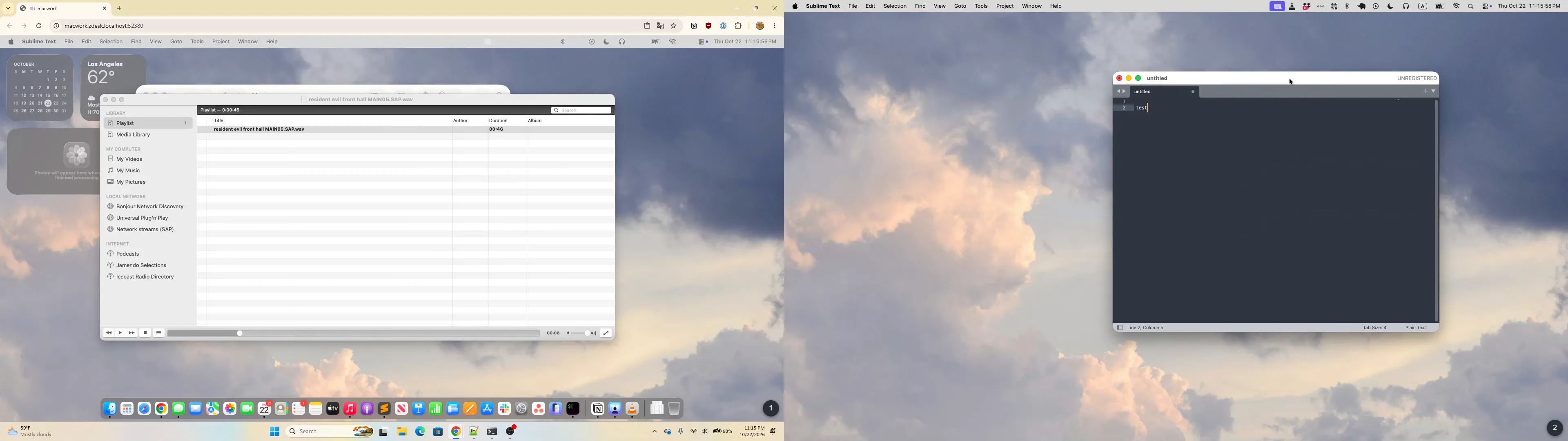
- The Mac sends to the gateway's UDP ports 5900 and 5901, and 5902 for a second display, so a firewall or NAT between them must let that through.
- QA only Where it cannot, as for a virtual Mac behind its host's NAT,
relay = "host:port"reaches the Mac throughzdesk-relay, run on a machine that reaches both, withhostthe Mac as the relay reaches it. The gateway only connects out, to the relay's one TCP port, which carries the media stream too. The relay has no authentication yet. - A Linux gateway needs
net.core.rmem_maxof at least 4194304 for the picture's socket, and the log warns when it is lower: the stock 212992 loses keyframes at Retina sizes. - The gateway decodes neither of the Mac's streams: the picture is passed, as the HEVC or the H.264 chosen at the picker.
- The H.264 passthrough needs nothing added in the page: the Mac is asked for H.264 in place of its HEVC, and the browser decodes it with its own decoder, which more browsers have for H.264 than for HEVC. So a default build serves the target, with no software decoder, to any browser that has
VideoDecoder, Firefox included, and the picker offers the H.264 only in those browsers; withoutVideoDecoderit is greyed. The picker does not ask the decoder itself: a browser whose decoder does not take the Mac's H.264 says so in the session, by the decoder's error. - The HEVC passthrough sends the HEVC only when the page's startup probe finds a decoder path. Support depends on the browser, platform and GPU, so the picker is authoritative. The gateway can also serve the optional software picture decoder described in
zdesk.example.toml. - The Mac mutes its own speakers while it streams, so a session always carries AAC-ELD sound. The page probes that separately; if it cannot decode the sound, the session continues without audio and the menu says why.
Standard on a virtual display unofficial
virtual_display = true on an ard target opens Standard mode on such a virtual display, with resize and without the media stream or sound, the physical displays disabled meanwhile. It is the recommended way to reach a Mac with more than one display connected, whose Combined Display is impractical in a browser past two small screens. Apple's viewer never offers this combination; it was tested on macOS 26 only.
Apple documents none of this protocol. Both modes are reverse engineered and only as correct as the Macs they were measured against, and a macOS update is free to change any of it. See Apple RFB 003.889, as measured.
wlshare (vnc, subtype = "wlshare")
[[targets]]
name = "wayland"
protocol = "vnc"
subtype = "wlshare"
host = "192.0.2.12"
username = "me"
password_ref = "wayland"
wlshare is this project's own VNC server for wlroots-based Wayland desktops. The subtype makes the gateway list wlshare's private RFB extensions: its H.264 stream of the whole desktop, which is passed through untouched and paced to the browser's link, pixel density, the output list, sound, and, in a session started with them, the browser's camera and microphone as PipeWire devices on the desktop. Without the subtype the same server is read as any VNC server is.
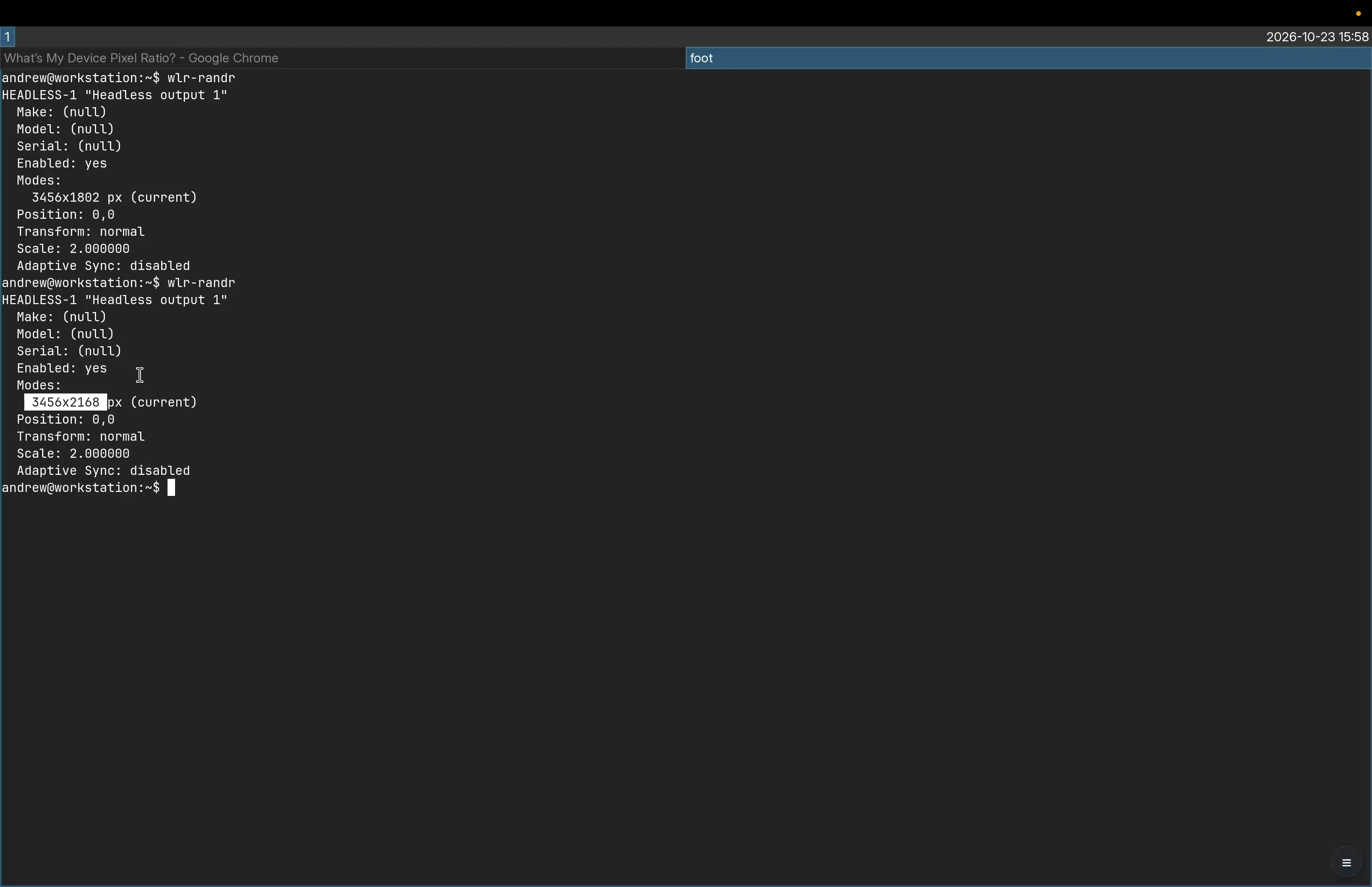
wlr-randr reports its headless output at scale 2, resized from 3456×1802 to 3456×2168 as the browser went into immersive full screen.The picture
The picker's Picture group has three, all passed through, so no label says so, and no key tunes any of them: wlshare codes each one way.
Adaptive video
The default. wlshare's H.264 of the whole desktop, 4:2:0, at the quality wlshare decides.
- On a slower link
- Fewer frames rather than coarser ones
- Host's processor
- The lighter; the host's hardware encoder where it has one
- Text
- Can be less crisp
- Lossless
- never
Progressive tiles alpha
For a link that is not always wide: every tile RemoteFX Progressive, as a Windows host draws over RDP without H.264.
- On a slower link
- Coarser first passes and fewer frames
- Host's processor
- More than the video, coded in software
- Text
- Crisper
- Lossless
- never
Tiles with motion LAN
What is still as lossless PNG, and a video stream of its own for each region that moves.
- Link
- Room to spare: several times the video's bytes, tens of Mbit/s while something large moves
- Moving regions
- H.264 from the host's hardware encoder or libx264
- Text
- Lossless once still
- Lossless
- once a region stops
Progressive tiles are coarse first and refined in place once still, what moves sent as the change from what the page holds. The page decodes them itself, as it composes an RDP host's pipeline, so they need no video decoder, and are greyed where the page cannot compose one. Tiles with motion send each region that moves lossless again once it stops.
Two outputs beta
A desktop with exactly two outputs, monitors or headless ones, is listed with All Displays and starts on it: the first stays here and the second opens at /display/2 in a new tab of the same browser, with its own pointer and keyboard, as on an rdp target with two virtual displays. virtual_displays = 2 asks wlshare for two, as it asks a Windows host or a Mac: on sway wlshare has the compositor make a second headless output, and a session started with two and asked for one, the default, keeps one; on another compositor the outputs are what the compositor has.
Logging in and versions
The example uses the account wlshare runs as, checked through PAM over RSA-AES. If wlshare instead uses its [password] table, keep that password under password_ref and omit username: RSA-AES then sends the password alone. wlshare does not offer classic VNC authentication, so vnc_password_ref does not apply to it.
The gateway and wlshare must speak the same version of wlshare's protocol; wlshare --version names the one a wlshare speaks. A session against a wlshare of another version fails at connect, naming both, and is fixed by upgrading whichever of the two is older. A wlshare release that changes nothing of the protocol keeps its version.
See density, outputs, audio, camera and microphone.
Other VNC servers (vnc)
[[targets]]
name = "workstation-vnc"
protocol = "vnc"
host = "192.0.2.13"
vnc_password_ref = "workstation-vnc"
A plain target takes vnc_password_ref for classic VNC authentication, or username and password_ref for RSA-AES. For a password-only RSA-AES server, use password_ref without username. The gateway asks for ZRLE, which every current VNC server has, and reads nothing else but Raw; the older standard encodings, Tight and the other vendor or lossy ones are not listed. The target is shown at its server's own size, at 1x, and carries no sound, camera or microphone. Standard RFB cannot say that its pixels are HiDPI; see HiDPI over standard RFB.
Camera and microphone
Camera and Microphone are ticks at the picker on an rdp or wlshare target, which offer the remote this browser's camera and microphone. Both are experimental, off until ticked and remembered per target as every choice is. A session started with the camera gives the remote a camera as it connects, and this browser's camera opens only while an application on the remote uses it, so its light is off the rest of the time; the Info card's Camera row says which. The microphone is the same: plugged in as the session connects, and this browser's microphone open only while something on the remote records, as the Info card's Microphone row says. They are for someone who needs one for a while, a call or a recording, and are sent as cheaply as that allows: H.264 from the browser passed untranscoded, and mono speech Opus at a low fixed bitrate. An Apple target and a plain vnc target offer neither.
| Target | Camera | Microphone |
|---|---|---|
rdp | a Windows host that redirects cameras | started once something on the host records |
vnc, wlshare | a PipeWire camera on the desktop | an ordinary PipeWire source |
vnc, Apple subtypes | ||
vnc |
On RDP the camera needs a Windows host that redirects cameras: a workstation, or a Windows Server carrying the Remote Desktop Session Host role. A Windows host starts the microphone only once something on it records.
On wlshare the camera is a PipeWire camera on the desktop, and a browser there reaches it only through xdg-desktop-portal with xdg-desktop-portal-gtk, which wlshare's package recommends; Chrome also needs chrome://flags/#enable-webrtc-pipewire-camera turned on. Without them a page that asks for a camera finds none. The microphone needs neither: it is an ordinary PipeWire source.
Local instances
Native installs include a terminal control plane that runs several gateways on one machine, each with its own config and browser origin:
zdesk tuiYour browser
The landing page at
zdesk.localhost:52380, each instance at<instance>.zdesk.localhost:52380- loopback only
zdesk tuiOwns the port on loopback, logs a browser in with a PIN, and proxies each subdomain
- each its private Unix socket or named pipe
Instances
One gateway each, with its own config, started and stopped from the TUI
It listens on loopback only, on port 52380 unless --port or ZDESK_TUI_PORT says otherwise, and refuses to start on a port something else is serving. Open http://zdesk.localhost:52380; each running instance is at http://<instance>.zdesk.localhost:52380. It answers only those names at its own port. localhost, 127.0.0.1 and [::1] at that port are redirected to zdesk.localhost. Any other host or port is refused, so a tunnel or port forward that arrives under another name or port does not reach the TUI. One that arrives as zdesk.localhost at this port, or rewrites the host to it, does.
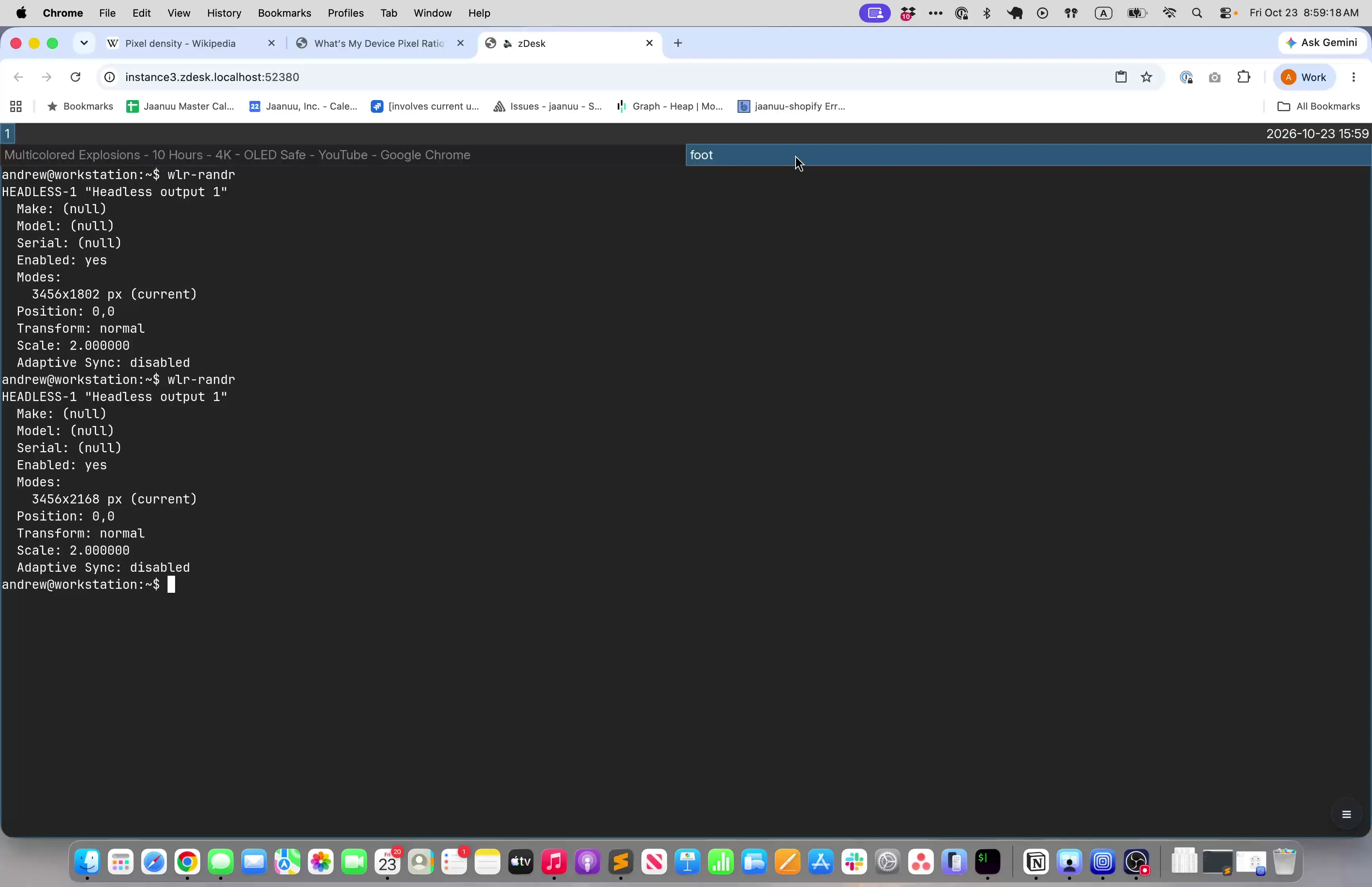
instance3, open in Chrome at instance3.zdesk.localhost:52380.Keys
| Key | Action |
|---|---|
| ↑↓kj | select an instance |
| n | create an instance |
| e | edit its zdesk.toml in $VISUAL or $EDITOR (vi, or Notepad on Windows); the edit is checked, and applies when the instance is restarted |
| p | encrypt a password into its [passwords], asking for the name and the password; a config without [master] gets one first |
| sxr | start, stop, restart it |
| a | start every stopped one |
| o | open a running one in the browser |
| Enter | show its settings |
| R | rescan the instances directory |
| P | show a new login PIN for the next browser, its time started again |
| ? | list every key |
| qEsc | stop every instance and quit |
Instances and their passwords
Each immediate subdirectory of the instances root is one instance:
| Platform | Instances root |
|---|---|
| Linux | ~/.local/share/zdesk/instances (or $XDG_DATA_HOME/zdesk/instances) |
| macOS | ~/Library/Application Support/zdesk/instances |
| Windows | %LOCALAPPDATA%\zdesk\instances |
--instances-dir chooses another. The root is private to your account, because the configs hold credentials. An instance's config has the same [branding] and [[targets]] as a gateway's and no [server] block: the TUI owns the port and proxies each subdomain to that instance's private Unix socket or named pipe.
A config that names encrypted passwords needs the master password to start (see Target passwords). The TUI takes it from the keychain, generating one there the first time, then hands each worker only the key to its own config. An instance config copied from another account's keychain does not open under this one: remove its [master] and [passwords] and set each password again with p.
Logging in with a PIN
A PIN is shown
Six digits,
123-456, in the access panel above the instance list, with the clock time it expires, ten minutes on- entered once, with or without its dash
One browser logs in
That login reaches the landing page and every instance, until the TUI quits
- the panel shows the login in place of the PIN
P for the next browser
A used, expired or withdrawn PIN no longer works; a new one starts its time again
A browser logs in with a PIN. The TUI's access panel, above the instance list, shows a six-digit PIN and the clock time it expires, ten minutes after it is generated. The PIN is printed as 123-456 in a colour of its own, one word for a double-click, and c sends it in that form to the clipboard through the terminal (OSC 52), which reaches your own clipboard over SSH. Inside tmux it goes into a tmux buffer, which tmux passes on to the terminal's clipboard under its default set-clipboard setting. No terminal confirms the write, and Apple's Terminal.app drops it, so if a paste does not give the PIN, select it instead. The PIN field takes the PIN with or without its dash. The PIN is entered once, on whichever page the browser opened, the landing page or an instance, and the browser stays there. That one login reaches the landing page and every instance. A PIN page left open in another tab offers to continue instead once you switch back to it.
The PIN is one-time: it admits one new browser. Once it has, the access panel shows that a browser logged in and when, in place of the PIN, and the PIN no longer works. P shows a new PIN for the next browser and starts its time again. After five wrong entries the PIN is withdrawn, and every entry is refused until P shows a new one. The PIN form says which it was: used, expired or withdrawn. The PIN guards only new logins. A browser that has logged in stays logged in when the PIN is used, expires or is replaced, and when its instances restart. Only quitting the TUI logs it out.
The PIN keeps out anyone who cannot see the TUI's terminal, with one gap. A cookie ignores the port, so another account on the machine that serves a page at zdesk.localhost, or a name under it, on another port, and gets you to open a link to it, can take a logged-in browser's login. Do not run zdesk tui on a machine shared with users who must not reach those desktops.
The private files and worker endpoints keep credentials from other local users. A browser never holds a worker's token: the TUI presents it for a logged-in browser. A browser gets in to a gateway one of two ways: this PIN, or a served gateway's username and password.
See Local multi-instance control plane. For installing zDesk, see the quick start or Installing zDesk in the repository.